ExportProof: batch export + verify for Blender
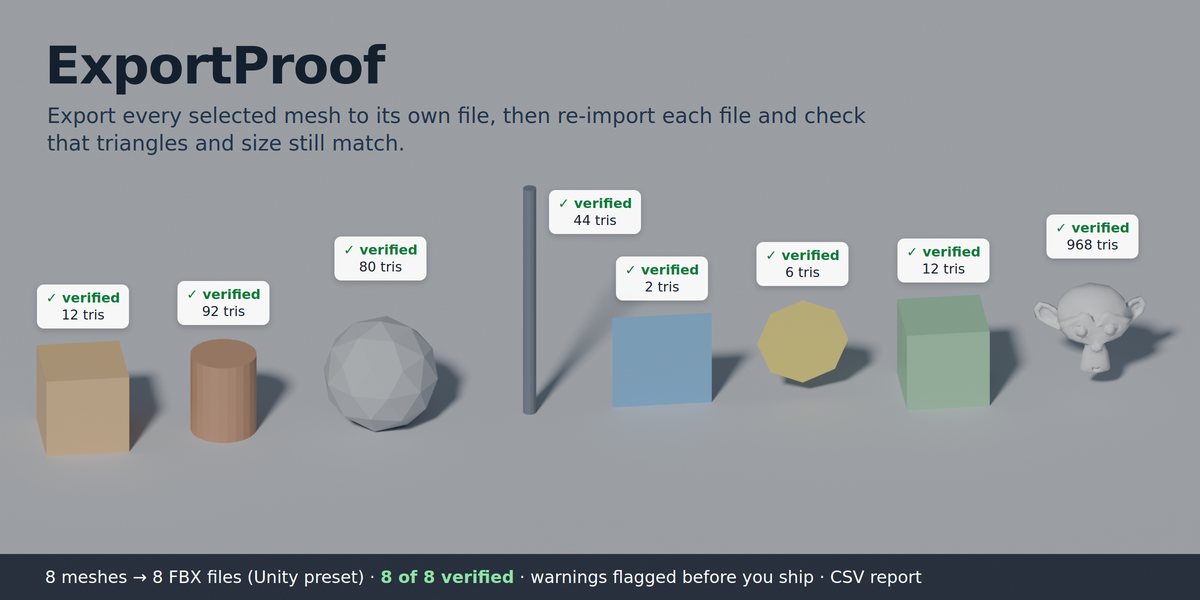
Export every selected mesh to its own file, then re-import each file and check that triangles and size still match.
Buy on Gumroad · USD 7Version 1.1.0 · Blender 4.2 or newer · GLB, FBX, OBJ · GPL-3.0-or-later
Description
ExportProof is a small, focused add-on for people who send meshes to a game engine or the web. One click does two things:
- Batch export. Every selected mesh is written to its own file (GLB, FBX or OBJ), named after the object. Optionally each object is moved to the world origin while it is exported and put back afterwards.
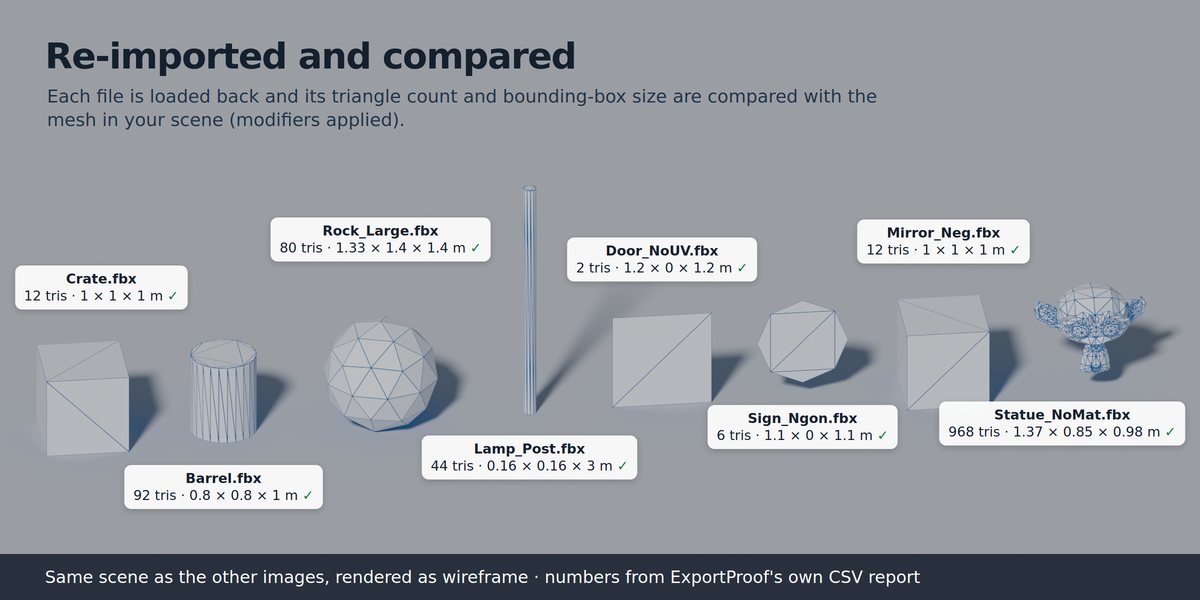
- Verification. ExportProof loads every file it just wrote back into Blender and compares it with the mesh in your scene (modifiers applied): the triangle count must be identical and the bounding-box size must match. Then it removes everything it imported.
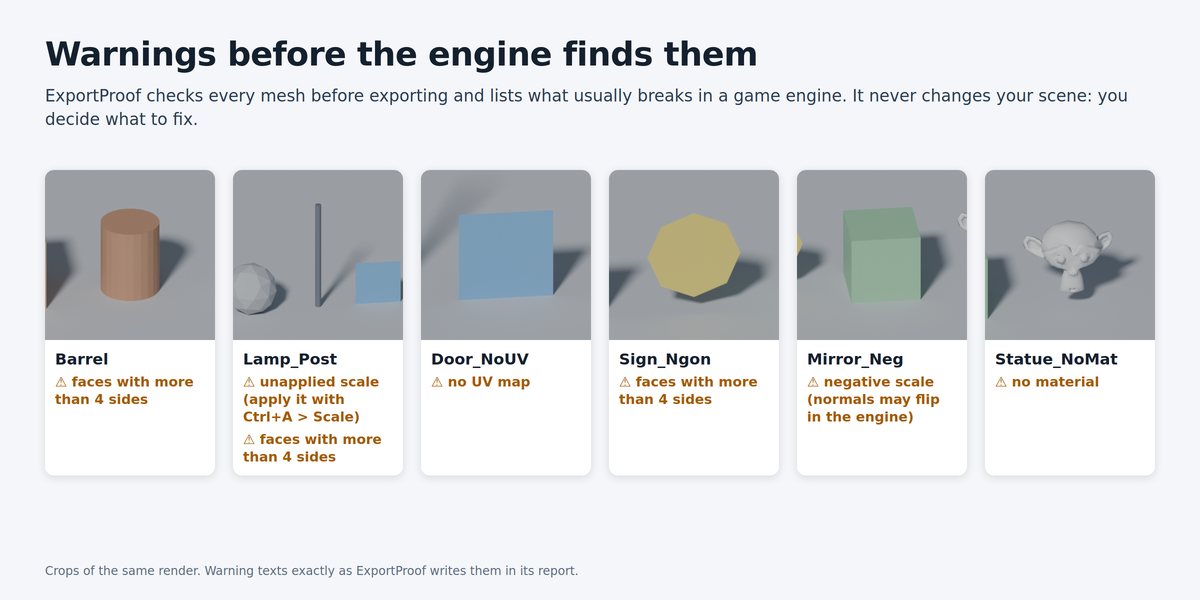
Before exporting, it also lists common problems that usually show up later in the engine: unapplied scale, negative scale, faces with more than 4 sides, meshes without a UV map and meshes without a material. It never changes your scene to "fix" them: you decide.
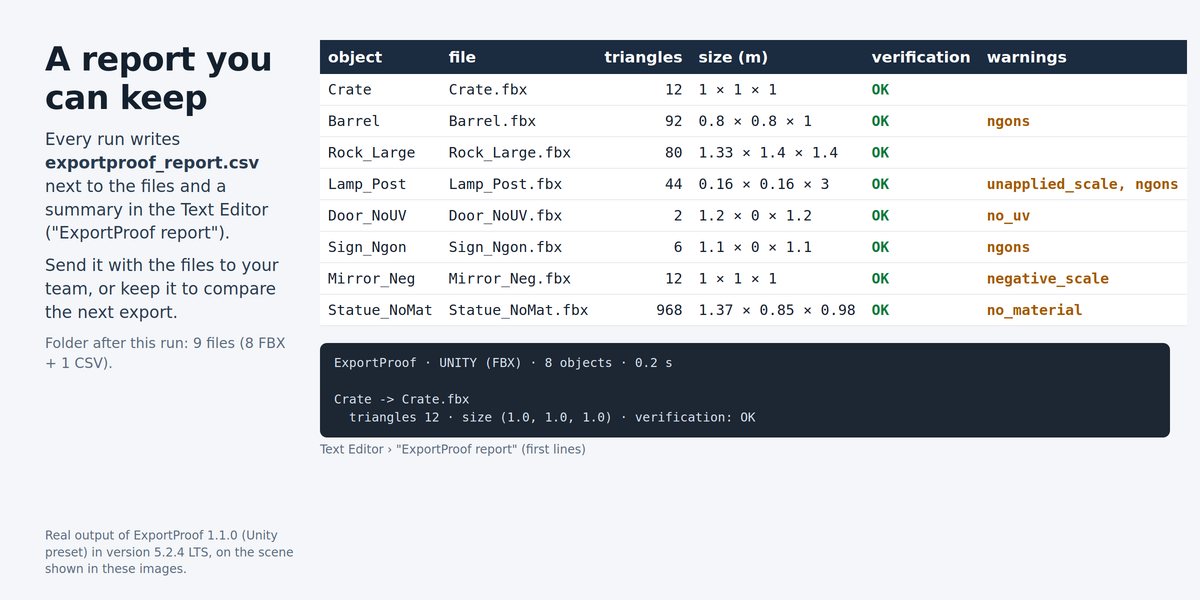
Every run leaves a CSV report next to the files and a summary in the Text Editor.
Installation
- Download
exportproof-1.1.0.zip. Do not unzip it. - In Blender 4.2 or newer: Edit > Preferences > Get Extensions > the arrow menu in the top-right corner > Install from Disk… and choose the zip. (You can also drag the zip into the Blender window.)
- Make sure "ExportProof" is enabled in the list.
- In the 3D Viewport press N to open the Sidebar and click the ExportProof tab.
To update, install the new zip the same way. To remove it, disable or uninstall it in Preferences > Add-ons.
How to use
- Save your .blend file (or choose an absolute output folder).
- Select the meshes you want to export.
- In the ExportProof tab, choose a Target (or Custom format) and an output Folder.
- Press ExportProof.
- Read the message in the status bar: how many files were written, how many failed verification and how many have warnings. The details are in the Text Editor under "ExportProof report" and in
exportproof_report.csvin the output folder.
Options
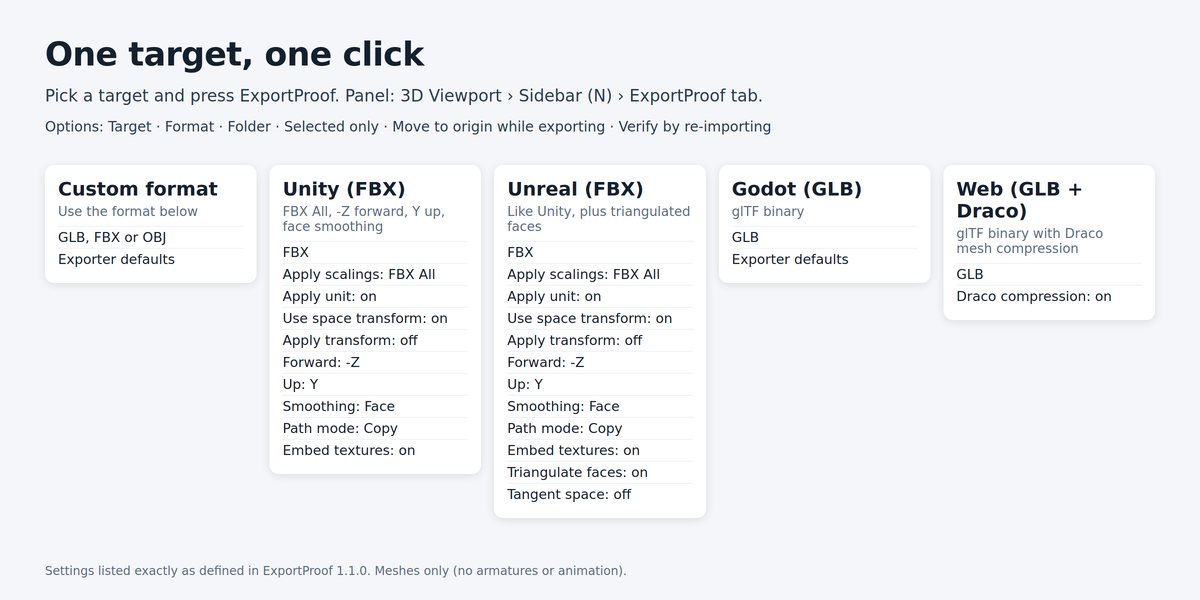
- Target: Custom format, Unity (FBX), Unreal (FBX), Godot (GLB) or Web (GLB + Draco). See "Targets" below.
- Format (only with Custom format): GLB (glTF binary), FBX or OBJ, with the exporter defaults.
- Folder: where the files and the report are written. The default
//export/means a folder called "export" next to your .blend file. - Selected only: export only the selected meshes. If off, every visible mesh in the view layer is exported.
- Move to origin while exporting: each object is moved to (0, 0, 0) while its file is written, so the pivot ends up at the origin of the file, and it is put back right after.
- Verify by re-importing: re-import every file and compare it with the scene (recommended; turn it off for a faster export without checks).
Targets
- Unity (FBX): FBX with Apply Scalings = FBX All, Apply Unit on, Use Space Transform on, Apply Transform off, Forward = -Z, Up = Y, Smoothing = Face, Path Mode = Copy with embedded textures.
- Unreal (FBX): the same as Unity plus Triangulate Faces on and Tangent Space off.
- Godot (GLB): glTF binary with the exporter defaults.
- Web (GLB + Draco): glTF binary with Draco mesh compression.
- Custom format: GLB, FBX or OBJ with the exporter defaults.
Only mesh objects are exported. Modifiers are applied in the exported file; the objects in your scene are not changed.
What is verified
For every file, ExportProof re-imports it and checks:
- that exactly one mesh comes back;
- that the number of triangles is identical to the mesh in your scene with modifiers applied (an n-gon with n sides counts as n − 2 triangles);
- that the bounding-box size matches within 1 mm (or 0.1% for objects larger than 1 m). Sizes are compared regardless of axis order, because FBX and glTF use a different up axis;
- (GLB and FBX) that the UV maps and the materials did not get lost: if the mesh in your scene has a UV map or a material and the file comes back with none, the file fails with
UV map lostormaterials lost. OBJ is not checked for this: ExportProof writes OBJ without a .mtl file on purpose, and the OBJ importer always creates a UV map.
A file that passes shows "OK". A file that does not shows "FAIL" with the reason, for example triangles 968 -> 960. Everything the re-import brought in (objects, meshes, materials, images, textures, actions) is removed afterwards if nothing else uses it.
Warnings (checked before export)
- unapplied scale (apply it with Ctrl+A > Scale)
- negative scale (normals may flip in the engine)
- faces with more than 4 sides
- no UV map
- no material
Warnings do not stop the export. They are written in the report so you can fix them in your own way.
The report
exportproof_report.csv has one row per object with these columns: object, file, triangles, size_x, size_y, size_z, verification, warnings. Warning codes in the CSV: unapplied_scale, negative_scale, ngons, no_uv, no_material. The same information is in the Text Editor under "ExportProof report".
Limitations
- Meshes only: no armatures, animation, cameras, lights or curves.
- One object per file (it does not merge objects).
- File names use letters, numbers, "-" and "_" only; other characters become "_". If two objects end up with the same name, a number is added (
Crate_2). - Verification checks triangle counts, size, and that UV maps and materials are not lost (GLB and FBX). It does not compare UV coordinates, normals, vertex colors or textures.
- Tested on Linux with Blender 4.2.23 LTS and 5.2.4 LTS (270 automated checks pass on both). Windows and macOS use the same Python code but were not tested by me.
FAQ
Does it change my scene? No. Objects are moved to the origin only while their file is written (if that option is on) and put back immediately. Imported test copies are deleted.
Why did a file fail verification? Because something changed between your scene and the file: for example an exporter setting that triangulates or drops geometry, or a scale or unit setting that changes the size. The FAIL message says what differed.
Can I use it in a commercial project? Yes. The add-on is GPL-3.0-or-later; the files you export are yours.
What about support? Send a message through the Gumroad page ("Contact"). I answer within 72 hours.
How this add-on was made
ExportProof was written with the help of an AI model (Claude) and tested with 270 automated checks in Blender 4.2.23 LTS and 5.2.4 LTS. The images on this page are renders of a real test scene and the numbers in them come from ExportProof's own report.
Screenshots